
For festival distribution, it is essential to burn in subtitles and have your film’s videos in several languages. In a previous post I explained how to do it using HandBrake, which is one of the best programs available for video conversions and is also free.
The most commonly used file type for working with subtitles is SRT, but it cannot be formatted. SRT is very simple, and it is not possible to change the text color or font. When we burn them in with HandBrake, the program itself uses a default format that cannot be changed.
But… Is there any way to burn in subtitles in HandBrake while changing the format?
In this post we will see that it is possible, but it requires several steps. It is a small trick that allows us to get the format we want by using the SSA/ASS subtitle format and the MKV container. I have used this system for a long time, since earlier versions of HandBrake did not allow burning in SRT as they do now.
When we try to import subtitles, HandBrake only gives us the SRT option, but this program is compatible with many other subtitle formats. Keep in mind that one of its original functions was ripping DVDs, allowing you to burn in subtitles that come in VOBSUB format, even if it is not possible to import them directly.
The Substation Alpha subtitle format, better known as SSA/ASS, is much more advanced than SRT. One of its main differences is that it allows you to change the formatting and the effects that can be applied. The code is more complex than SRT, but it can also be opened with any plain-text editor. Because of its advantages, it is a widely used format among fansubs, karaoke, and Japanese animated cinema.
To work with this format we are going to use the program Aegisub, which is free and cross-platform. Once we have it ready, we will create an MKV with the video and the subtitles. The MKV container is the open standard for HD, and it can contain any type of video, audio, and subtitles.
We will start from a QuickTime file, a MOV, or an MP4, and the subtitles in SRT. The final goal is to have a video with the subtitles burned in with the formatting we have defined beforehand, and not the default formatting in HandBrake.
#1 Creating the .ASS file
The first thing we are going to do is install Aegisub, open the SRT, and in the toolbar go to Subtitles>Style Manager.
We will see this window:

This program allows you to create different styles. When we open it for the first time, we only see the default style, which already appears selected. We edit it:

Now we can format the subtitles, change the color, font, position, shadows, etc. By default they come with a shadow and in white, so I removed the shadow and changed the color to yellow.
Once you have completed the changes, you can save it. By default, Aegisub works with subtitles using the .ASS extension and not SRT.
Now we have our formatted subtitle file.
#2 Preparing the MKV
Now we are going to create the MKV with the original MOV and the newly created .ASS. To do this we are going to use MKVtoolnix, which is also free and is a set of tools for working with MKV.
Once downloaded and installed, we open mkvmerge to create an MKV file, add the MOV and the subtitle file as you can see in this image:

We start multiplexing:

You must keep in mind that MKV is a digital container, so you are not encoding the video, and there is no loss of image quality. You will see that during this process some errors have appeared because the audio is unencoded. To avoid these problems, it is advisable that the audio is already encoded in AC3 or AAC.
Once this process is finished, we will have a new video with the MKV extension. Let’s check that the subtitle is included.
We open VLC and select the subtitle track from Subtitles>Track>Track1:

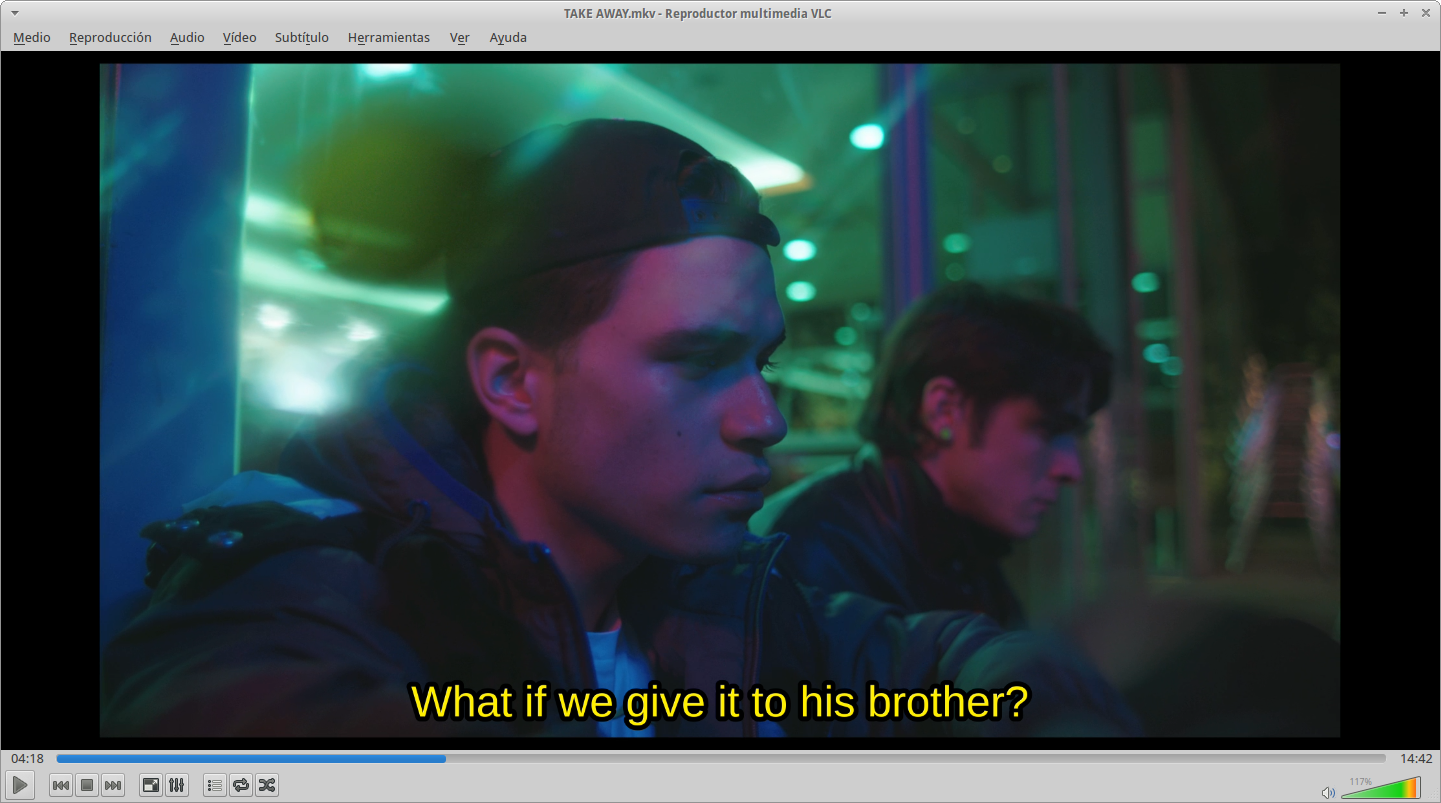
We can see that the subtitles are included in the MKV, and that I can select them from the player.
But our goal is to obtain a file with burned-in subtitles.
#3 Let’s burn in subtitles with HandBrake
If you do not have it installed yet, you can download it from its official website.
We must keep in mind that if we open a video file without subtitles included, it is only possible to import SRT and the Embedded Subtitle List option is not available:

Now you will see the difference. We open the MKV file we have just created, add subtitles, and now we can burn in subtitles in SSA/ASS format:

We tick the Embedded Subtitle List and Burn into video options so that they are burned in.
Everything is going well:

We are now ready to convert the file; the final format will be MP4 and it will have the subtitles burned in.
We view it again with VLC, but now we can confirm that there are no subtitle tracks, since they are burned in:


The subtitles look perfect, with the formatting we set at the beginning with Aegisub.
If you have any questions about this process or know another method to burn in formatted subtitles, I would love to hear your comments.